YouTube is one of the most popular social platforms, with millions of users and new videos uploaded every day.
Don’t worry, because you’ve come to the right place!
So, let’s begin!
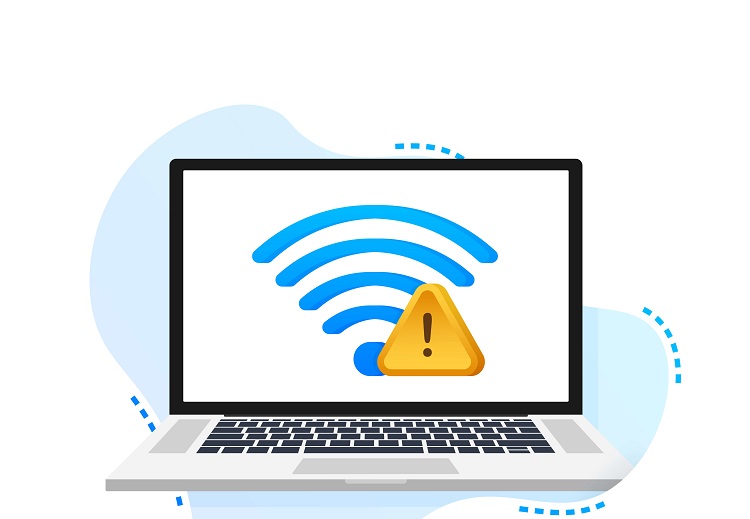
Check Internet Connection
To resolve this, you can try restarting your router, and to do this, you need to turn off your computer and then turn off the router, wait for about 2 to 3 minutes, and finally, restart these devices.
Refresh the Page
Check Permissions
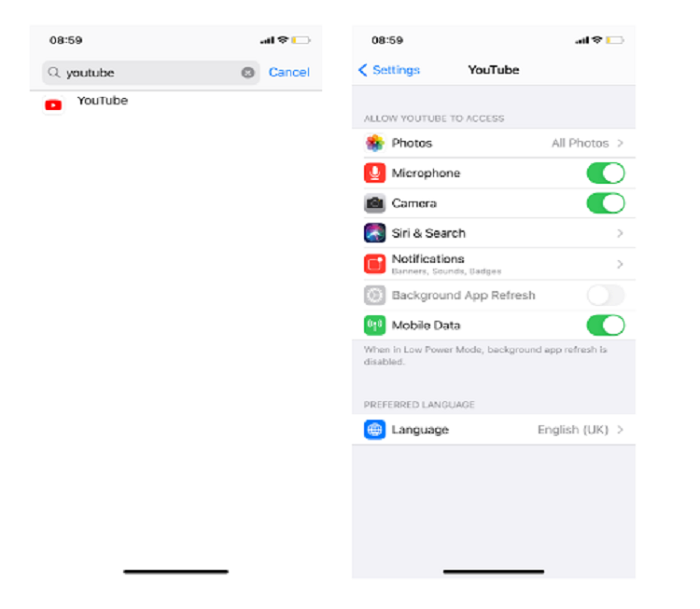
Sometimes there are many problems with YouTube related to permissions.
To try and fix this issue, follow the steps mentioned below:
- First, go to Settings and find the YouTube app.
- Then click on the app.
- And finally, make sure you have enabled all permissions.
Change Your YouTube Layout
Many users have reported that using the new YouTube layout causes various problems and difficulties while using the website or the app, as it might still be in development.
Therefore, it might be best to use the old layout to check if it fixes the problem in your YouTube channel .
Disable Proxy Connections
VPNs work similarly to Proxies, so these errors could occur if your VPN wasn’t set up correctly.
Therefore, if you’re using a VPN service, try turning it off and then on again.
This reconfigures the VPN correctly so that you won’t face internet connection problems again.
Check Extensions
Certain browser extensions, especially ad-blocking extensions, can affect how pages load in your browser, whether you’re using Mozilla Firefox or Google Chrome.
For example, if you’re using an ad blocker extension, this could stop specific YouTube scripts from loading.
So, try to disable browser extensions on your web browser, plugins, or any other add-ons and check if that’s the source of your problem with the YouTube page.
Clear Cache
Removing the YouTube app cache is among the most effective fixes to this problem, even on the mobile app.
Unfortunately, if you’re using an Apple device, there is no way to clear the YouTube app cache or data directly.
Therefore, to do this, you have to reinstall the YouTube app on your phone.
To do this, uninstall the YouTube app and reinstall it again from the App Store on your iPhone.
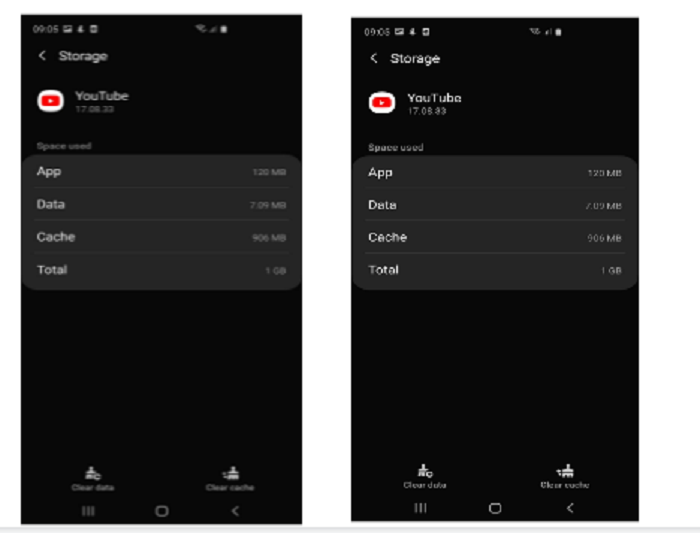
If you have an Android phone, you can clear the YouTube app cache through the App Info section found in Settings on Android devices.
To do this, follow the steps mentioned below:
- Open the Settings app, and select Apps & Notifications.
- Select and open YouTube from the list of apps.
- Select Storage, and from there, you can choose Clear Data and Clear Cache to delete the app data.
<img loading=“lazy” src=“https://thrivemyway.com/wp-content/uploads/2022/02/Clear-Cache-YouTube.png" onerror=“this.onerror=null;this.src=‘https://blogger.googleusercontent.com/img/a/AVvXsEhe7F7TRXHtjiKvHb5vS7DmnxvpHiDyoYyYvm1nHB3Qp2_w3BnM6A2eq4v7FYxCC9bfZt3a9vIMtAYEKUiaDQbHMg-ViyGmRIj39MLp0bGFfgfYw1Dc9q_H-T0wiTm3l0Uq42dETrN9eC8aGJ9_IORZsxST1AcLR7np1koOfcc7tnHa4S8Mwz_xD9d0=s16000';" alt=“You can try to clear browser cache and cookies to improve the browser’s performance and solve your “YouTube comments not loading” error. - 3”>
- 140 Impressive YouTube Stats 2024 [Facts and Figures]
- How to Make Money on YouTube [without Spending a Penny] in 2024?
- Video Pins on Pinterest [Detailed Guide 2024]
Conclusion
Which method worked out best for you in solving this YouTube error?
Do you have an alternative fix for this problem?