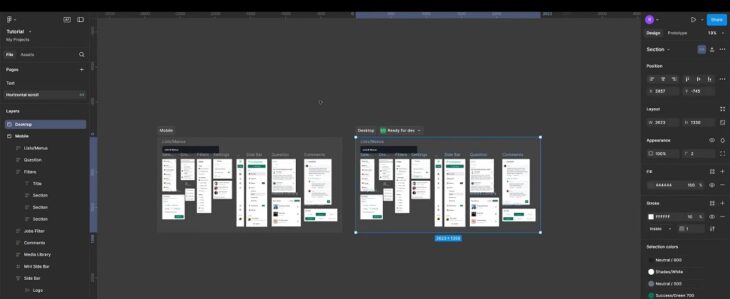
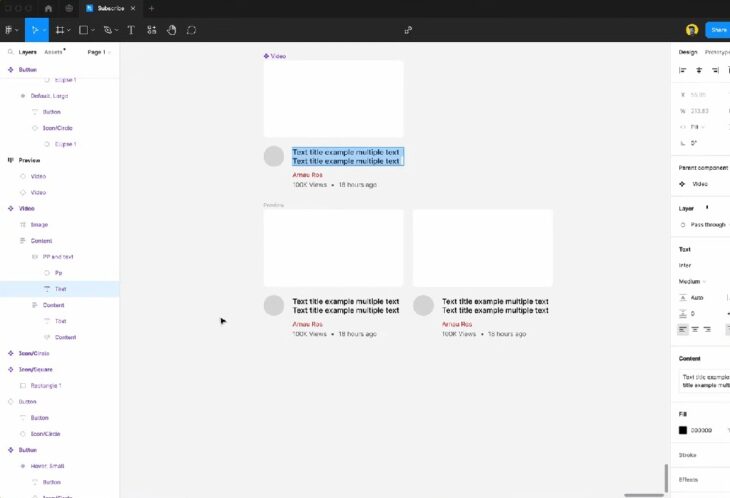
Figma is a cloud-based design platform that allows users to create, edit, and share designs all within a web browser—no hefty downloads or expensive software required.
Unlike older design tools that run only on certain operating systems, Figma works on Windows, Mac, and even Linux, as long as you have an internet connection.
At its core, Figma is used for designing user interfaces (UI) and user experiences (UX), including website layouts, mobile app screens, icons, social media graphics, and more.
Its greatest strength is real-time collaboration: multiple people can work on the same file simultaneously, seeing each other’s changes live, much like editing a Google Doc together.
Why Choose Figma for Simple Projects?
- No Installation Required: Figma runs in your browser or as a lightweight desktop app.
- Beginner Friendly: The interface is clean and intuitive. You can start a project in minutes, even with zero design background.
- Templates & Community: Figma has a massive library of free templates and resources created by its community, making it easy to find inspiration or pre-made layouts to build from.
- Collaboration: Sharing a project is as easy as sending a link. Clients, teammates, or mentors can leave comments or suggest edits directly on your design.
How To Start a Simple Design Project in Figma (Step-by-Step, With Extra Detail)
|YouTube
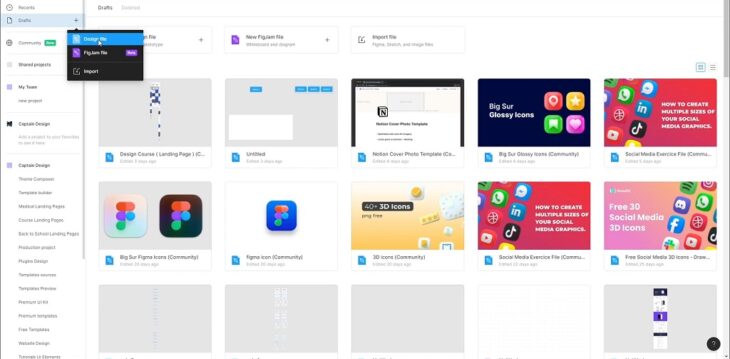
Getting started with Figma is as straightforward as it gets. Visit figma.com and create a free account—no payment or installation required.
After logging in, click on the big “+ New Design File” button on your dashboard.
What happens next?
You’re instantly launched into a blank canvas that works much like a giant whiteboard. This is your creative playground: you can make anything from a simple social media graphic to a complex website mockup. You don’t need to worry about saving files manually—Figma automatically saves every change to the cloud.
Pro tip: You can also use the Figma desktop app, which offers the same features as the browser version and can be more convenient if you work on design regularly. 2. Get Comfortable With the Interface
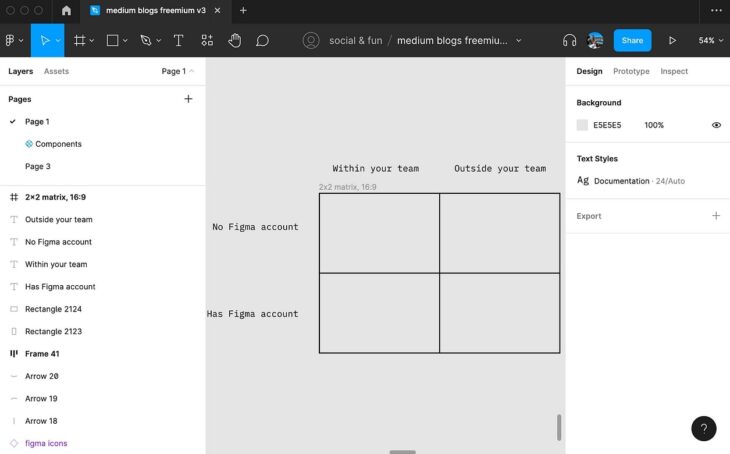
At first glance, Figma’s workspace might look intimidating, but its layout is clean and organized. On the left sidebar, you’ll see the layers panel, which shows every element and group you add—similar to Photoshop or Illustrator. Here, you can organize, rename, or lock layers to keep your project tidy.
The top toolbar has all your creative essentials:
- Shapes (rectangle, circle, line, etc.)
- Text tool
- Frame tool (more on that below)
- Image upload
- Hand and move tools for navigation
On the right panel, you control the properties of whatever you’ve selected: size, position, color, border, shadow, typography, alignment, and more. Want to change a shape’s color? Click the color swatch. Need to make text bold or increase spacing? You’ll find it here.