A freelance contract is a legally binding agreement between you and your client that clearly outlines the terms of your working relationship.
It should state what work will be done, how much it will cost, how and when you’ll be paid, and what happens if something goes wrong. Without this, your valuable time and intellectual property remain unprotected.
A proper contract offers security in four core areas:
- Defines deliverables and deadlines clearly
- Lock in payment terms to avoid late or missed payments
- Establishes intellectual property boundaries
- Reduces the risk of disputes or scope creep
While informal discussions might feel friendlier or faster, they offer no legal backup if a problem arises. If a client is hesitant to sign a clear, professional contract, that’s already a red flag.
Key Clauses Every Freelance Contract Must Include
1. Scope of Work

Freelancers often juggle project planning, contracts, and revisions alongside their creative tasks
This is the foundation of your freelance contract. It defines exactly what services you will provide, how much work is expected, in what format, and within what timeframe. Without a detailed scope of work, clients can request additional work (known as “scope creep”) without offering extra pay.
For example, instead of saying “I will design a homepage,” your contract should say “I will design one homepage concept with up to two revisions, delivered in .PSD and .PNG formats by July 15th.”
You should also specify what is not included—this avoids misinterpretation and prevents clients from assuming services you never agreed to.
2. Payment Terms
Clear payment terms protect your cash flow. This clause should include the total fee, payment structure (e.g., 50% upfront, 50% on delivery), accepted payment methods (e.g., bank transfer, Payoneer, Wise), and due dates.
Freelancers should also specify invoicing intervals if billing hourly or by milestone. If the client is in another country, be sure to clarify who covers transfer fees and currency exchange.
3. Intellectual Property Rights
This section addresses who owns the work, and when. In most cases, freelancers retain full ownership of their work until full payment is received. After that, you can either transfer ownership or grant a license for limited usage . Be specific.
For instance: “Freelancer retains ownership of all design files until payment is received in full. Upon payment, the client receives full rights to use the work for commercial and marketing purposes.”
You may also want to include a clause that allows you to showcase the work in your portfolio or online profiles, unless a confidentiality agreement prevents it.
4. Revisions

Modern freelance designers rely on responsive tools to collaborate with clients and deliver polished work quickly
Revisions are a common friction point. This clause should set boundaries on how many revisions are included in the initial fee, how extra revisions are billed (e.g., $100 per revision), and how long the client has to request changes.
Without this, you risk being pulled into an endless loop of tweaks.
For example: “The client is entitled to 2 rounds of revisions. Additional changes will be billed at $75 per hour. Revisions must be requested within 5 business days of delivery.” This keeps both timelines and budgets under control.
5. Late Payment Penalties
This clause motivates clients to pay on time. It usually specifies a financial penalty for delayed payments. Common terms include a flat fee per late day or a monthly interest rate (e.g., 1.5% per month).
View this post on Instagram A post shared by Adam Weissman (@weissmanlaw)
You can also include a “grace period” of 5–10 days before penalties apply. For example: “Payments not received within 10 days of the invoice date will incur a 2% late fee per week.”
This clause is especially useful for protecting freelancers working on longer-term or high-ticket projects.
6. Termination Terms
Sometimes, a project needs to end early. This clause explains how either party can cancel the contract , how much notice is required, and what payment is owed up to that point.
For example: “Either party may terminate this agreement with 14 days’ written notice.
The client agrees to pay for all work completed and approved up to the termination date.” This protects both parties and offers a clean exit if the project is no longer viable.
7. Confidentiality
If you’re working with sensitive information, include a confidentiality or NDA clause . This prevents you from disclosing details about the project or the client’s business.
For example, if you’re designing internal training materials or working with unreleased product concepts, this clause ensures legal protection.
If you’re not allowed to show the work in your portfolio, consider negotiating a higher fee.
8. Point of Contact
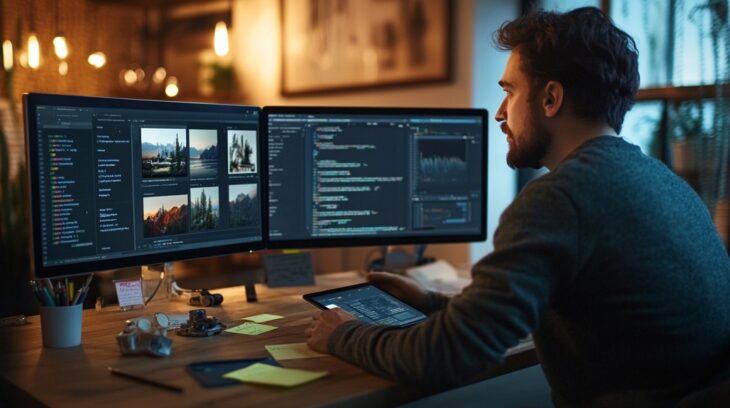
Freelancers in software and creative industries often use multi-screen setups to manage complex tasks efficiently
When dealing with companies or teams, it’s crucial to establish a single contact person responsible for feedback and approvals. This avoids confusion, mixed messages, and delays caused by too many voices.
Your contract might say: “All communication and approval requests will be handled by [Client Contact Name].
Feedback from other individuals will not be considered unless forwarded through the designated contact.” This clause helps maintain clear lines of communication and speeds up the workflow.
9. Dispute Resolution
If problems arise, you need a process to handle them. This clause outlines how disputes will be addressed, such as mediation or arbitration, before legal action.
A good clause could be: “In the event of a dispute, both parties agree to enter mediation before pursuing legal remedies. Jurisdiction will be based in [Your City/Country].”
This structure helps avoid expensive court cases and resolves problems faster.
10. Freelance Insurance Coverage
Even with a solid contract, some risks can’t be eliminated. This is where freelance insurance becomes essential. Depending on your field, you may need:
- Professional indemnity insurance : Covers legal fees and damages if a client accuses you of errors, negligence, or failure to deliver.
- General liability insurance : Protects you from third-party claims of property damage or bodily injury.
- Cyber liability insurance : Useful if you manage sensitive client data or work in IT, as it covers data breaches and digital attacks.
A brief mention of insurance in your contract—e.g., “Freelancer agrees to maintain professional indemnity insurance throughout the project term”—demonstrates professionalism and can build client trust.
While not every client requires proof of coverage, it’s increasingly common for larger businesses to request it before onboarding freelancers. You can check out more here .
Legal and Financial Protections You Should Not Overlook
Independent Contractor Status

Working from home allows freelancers to design a productive space that fits their lifestyle
Make sure the contract states you are an independent contractor , not an employee. This affects your tax obligations and avoids complications with labor law. You should:
- Set your hours
- Work for multiple clients
- Handle your taxes
This protects you from being classified incorrectly and keeps your freelancing legally compliant.
Indemnity and Liability
Indemnity clauses assign financial responsibility if a legal issue arises. Always read this carefully. Never agree to unlimited liability. Limit liability to the total value of the contract, and avoid clauses that make you responsible for client errors or third-party issues.
Portfolio Use and Credit
If your work will be confidential, ensure you’re compensated accordingly. Otherwise, include a clause that gives you the right to showcase the finished project in your portfolio and cite it as part of your experience.
What to Do When Things Go Wrong
Even with contracts, issues can arise. Clients miss payments. Scope expands. Communication breaks down. Your contract is your defense.
- Client not paying? Reference the contract clause on payment timelines and send a formal notice. Follow up with a registered letter if needed.
- Project expanding without pay? Politely remind them of the scope of work clause and offer a formal quote for the additional requests.
- Communication breakdown? Stick to the point of contact and summarize all discussions in an email for record-keeping.
Professional freelancers solve problems with calm, documented communication. The contract helps you keep things objective and business-focused.
Final Thoughts
Your freelance contract isn’t just paperwork—it’s your shield. It defines what’s expected, how you get paid, who owns what, and what happens when plans change. It’s what separates vulnerable freelancers from confident professionals.
Before you sign anything, make sure your contract reflects your value, protects your rights, and gives you leverage when things don’t go as planned. Clients who value your work won’t hesitate to formalize agreements. They’ll respect you more for it.
By learning how to read, negotiate, and enforce freelance contracts, you’re not just safeguarding your income—you’re laying the groundwork for a reliable, long-term freelance career.
Let me know if you’d like a downloadable contract checklist or a sample freelance agreement tailored to your work type.
3D printers are definitely a technology of the future. But to print all of the models, you will need 3D printing software on your computer. With so many options, it can be hard to pick the best one for you. This article will detail some of the pros and cons of the best 3D printing software out there.
What Makes 3D Printing Software Good?
- Ability to accurately visualize model
- Layer grouping for structure
- Easy-to-use interface
- Ability to manually adjust support structures
- Option to give reports on the 3D printer
- Full control over shape designs
- Ability to save in multiple file formats for sharing and sending to different types of printers
- The capability of handling multiple printers
- Validation tools
- Hassle-free resizing
- Track changes and save histories
- Compatibility on multiple platforms
Best 3D Printing Software Tools 2024
3D printing technology is constantly evolving, both the printers and the software. This list contains many different software options to choose from. The one that works best for you will depend on your 3D printing needs.
1. Autodesk Fusion 360 – Best 3D Printing Software for Mechanical Engineers
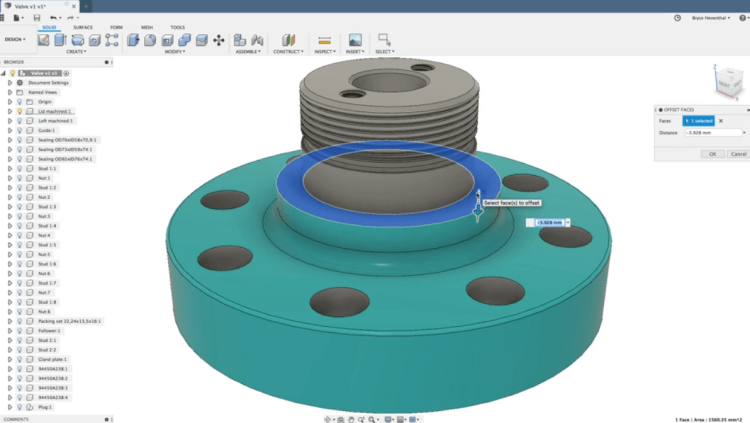
This 3D printing software tool is powerful and preferred by mechanical engineers, designers, and machinists. Autodesk Fusion 360 combines design, engineering, and manufacturing elements into one platform. It is ideal for producing highly efficient mechanical parts.
Fusion 360 is geared more towards advanced users, but an educated newcomer can still pick up Fusion 360 and create some great models. Once the design is finished, Fusion 360 assesses models for any weaknesses before you export them to a printable file.
The software also allows you to create and edit sketches with the sketching tool. It is a complete tool for both engineering professionals and hobbyists with money to spare. As it can seamlessly switch from modeling to slicing, Fusion 360 is a program where you can work a model from start to finish without switching to another program.
Autodesk does have an educational license for Fusion 360, so students can avail themselves of this perk and use it for 3D printing and modeling software. Additionally, there is a free 30-day trial for non-students to check out.
Pros:
- Full control over shape designs
- Collaborate with other designers in real-time
- Easily set up material and manufacturing constraints
- Good export file support
- The entire history of the model stored in the cloud
Cons:
- Pricey
- Requires internet connection
- No simulation tools
Pricing:
- Free for students
- $60/month billed monthly
- $495/yearly when billed in one annual lump sum
2. Ultimaker Cura – Best 3D Hosts and Remote Monitoring Software
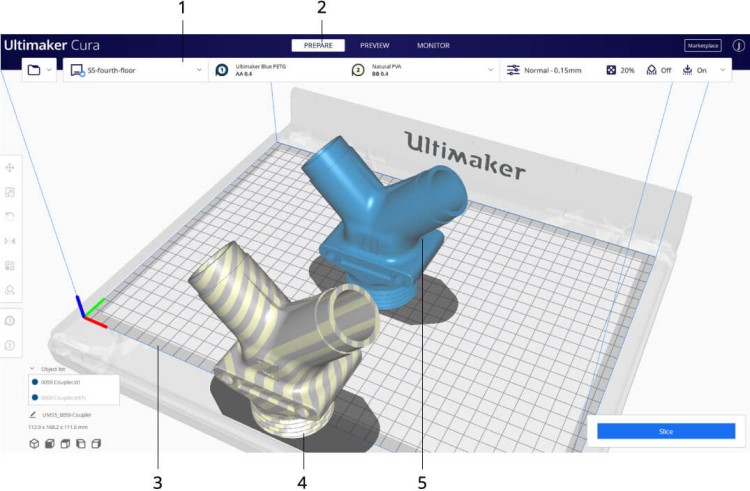
Cura is free and open-source and is designed for new users because it is both intuitive and fast. It is therefore a wonderful tool for beginners who are just getting into 3D modeling and want to try some software out before paying for it.
Cura is designed for Ultimaker printers but can be used with many other printers using plugins. In many cases, the optimal settings are already there, making getting started as easy as one click. If you want to do something more advanced, you can absolutely start tweaking the settings.
“Recommended” mode is great for people just starting out, but “Custom” mode allows you to tweak hundreds of settings. Cura is also one of the best slicer software tools on the market given its ability to do deep customization and scale the project to the size you need.
Ultimaker Cura can be used for 3D printer host software, provided the printer is connected to the PC. Nevertheless, Cura is a very accessible 3D slicer for 3D printing. It has loads of educational resources and a community forum.
Cura is ultimately a slicer program instead of a 3D modeling suite, but it is perfect for making files printable and it integrates well with other 3D CAD software. Once you are ready to print, Cura’s Monitor stage gives you an estimated time to print, as well as an estimated amount of filament used.
Additionally, Cura will inform you if there are any potential issues that may arise when printing, which can be a time and a cost saver.
Pros:
- Monitor multiple 3D printing jobs from one interface
- Scale 3D models quickly with the adjustment tools
- Compatible with STL, X3D, OBJ, and 3MF
- Enormous library of custom material
- Software is designed for new users and has a short learning curve
Cons:
- The 3D viewer has limited capacity to view at multiple angles
- Can lag when loading large files
- A heavy program that takes up a lot of space
Pricing:
- Free
- Enterprise option for $300/year
3. TinkerCAD – Best 3D Printer Design Software for Kids
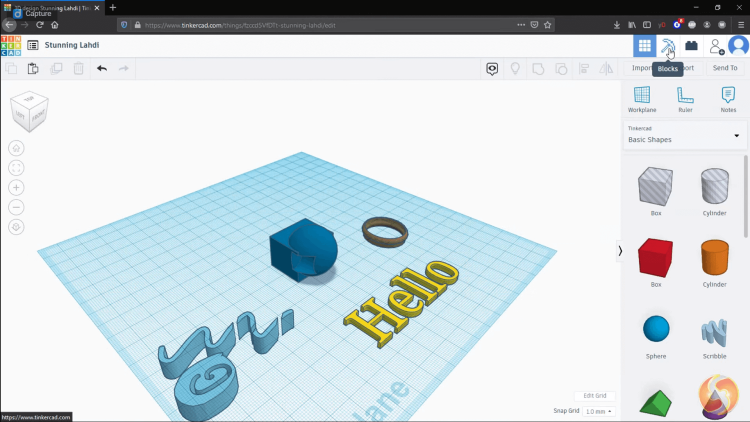
This 3D modeling and designing tool is web-based and has a straightforward interface that makes the process of 3D printing simple. It is designed with simplicity in mind to make 3D model creation accessible to anyone. And, despite being straightforward and simple, it is still powerful enough to design complex models.
TinkerCAD has options for both beginners and professional designers because the models can be scaled to ability. It is perfect for introducing a classroom full of students of any age into 3D design and modeling. The website has a plethora of tutorials and lessons for the purposes of teaching 3D design. It also references Minecraft and Lego for building models.
It can be used in either the web browser or the downloaded application. Exporting and sharing files is easy. You can also peruse the library full of millions of files, and then manipulate them into any shape you wish.
The TinkerCAD community has a library of shared assets for anyone to use. You can also add assets to the library, making it ever-expanding.
TinkerCAD works great on Windows and Chromebook but can be buggy on Mac. This is probably a browser-based issue so it is best to use Chrome or Firefox.
Pros:
- Ability to import both 2D and 3D models for printing
- Capable of executing laser cutting
- Cloud storage to save models and designs
- Easy-to-learn user interface
- Detailed tutorials to learn all of the software’s functionalities
Cons:
- Allowance value of complete surface triangles
- Some bugs when importing files
- The simplicity of the program can be limiting
Pricing:
- Free
4. MeshLab – Best Printing Software for Fixing STL Files
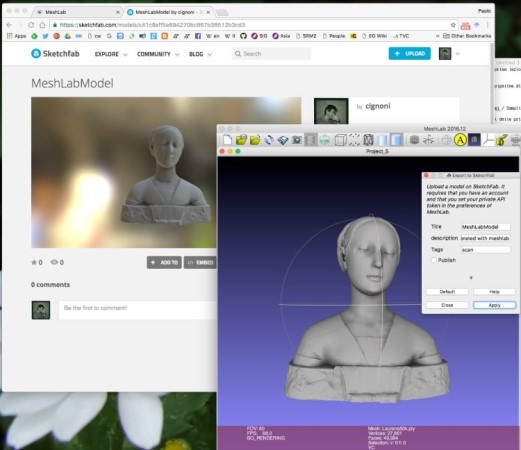
MeshLab is another open-source 3D designing tool that is perfect for editing 3D triangular meshes. You can edit, provide texture, convert, and render meshes easily. Afterward, the design can be easily prepped for 3D printing.
The software is perfect for processing the raw data and converting it into 3D models for printing. It features model reconstruction, color mapping and texturing, and the general ability to clean up and repair errors in 3D print models.
The software is both flexible and stable. MeshLab is perfect for solving problems with 3D models and supports a plethora of formats. You can get high-quality results out of it quickly. The program itself is very light and can work on older computer systems.
MeshLab is also great for color 3D printing because the software shows the colors in the program, along with projected contrasts, saturation, and sharpness. Plus, MeshLab has a “hollow out” option to help you save on filament costs without weakening the model too much.
Additionally, there is a community that makes comprehensive tutorials to help you work out the kinks in your workflow.
Pros:
- Leading-edge processing and editing of 3D triangular meshes
- 3D color mapping and texturing
- Efficient for enhancing the 3D printing process
- Ability to calculate distance between two points of the mesh
- 3D reconstruction capabilities
Cons:
- Navigation lacks essential options
- Some buttons have more than one function to cycle through
- No autosave feature
Pricing:
- Free
5. FreeCAD – Best 3D Printing Software for Mac
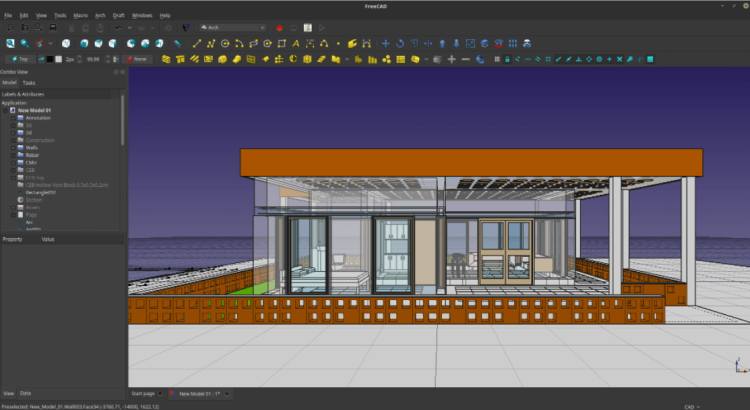
This 3D modeling tool is capable of rendering real-life designs regardless of shape or size. It is a great 3D printing training tool. You can change the parameters of the design to create an entirely resized model. It is for those just getting into 3D design modeling.
Even though it is free and a training tool, it provides deeper and more complex tools for creating 3D printing files. It is used a lot for prototypes of product design because there is no extra cost.
FreeCAD features a robot simulation mode that enables you to study robotic movements. It also has built-in architectural tools and a path module for Computer-Aided Manufacturing. It supports STL, OBJ, DAE, STEP, IGES, SVG, DXF, and IFC file types and works on Windows, Mac, and Linux.
It also allows you to import or sketch 2D shapes and then build them up into 3D objects. The learning curve is relatively straightforward and there are plenty of tutorials to help you at every step along the way.
FreeCAD is an excellent option for you if you need robust CAD software but do not want to spend a lot of money.
Pros:
- Create bases of 3D models out of 2D objects easily
- Supported on Windows, Mac OS, and Linux
- Useful for architecture and mechanical engineering
- A comprehensive history of edits for every model
- Robotic Simulation feature
Cons:
- Very basic user interface
- Not intended for professional use
- Limited functionalities beyond what is described above
Pricing:
- Free
6. Creo – Best Modeling Software for 3D Printing
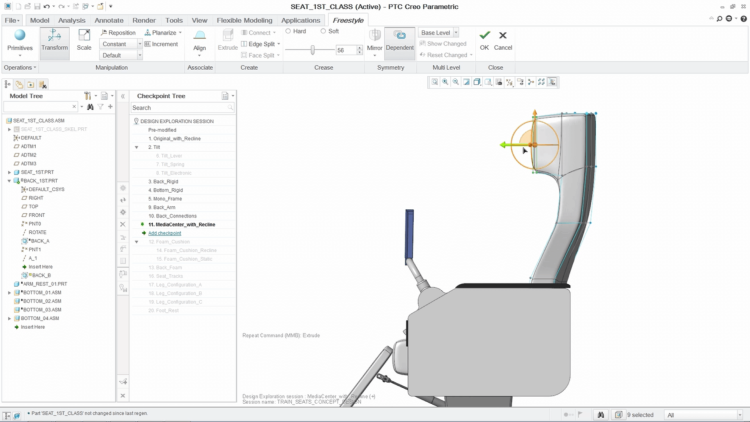
This tool has motion, structural, and thermal functionalities, and that is only the beginning. It is capable of designing, simulating, and printing 3D models. It uses data from real-world models to help create better designs.
Creo’s tools enable you to create high-quality models, then optimize the print result depending on manufacturing methods and engineering requirements. Prior to printing, Creo allows you to test the object in a simulation for functionality and durability.
This software can be a little daunting to beginners but it is perfect for professionals looking to increase their modeling and printing capabilities.
Creo does have a hefty start-up price, but if you are intending on using it consistently for more than a year, it works out to be much cheaper in the long run. Lifetime licenses do eventually become the better price. Plus, you can try it for 30 days at no cost to decide if you like it or not.
Pros:
- Augmented reality capabilities for efficient simulation
- Amazing topology optimization
- Real-time simulation for objects
- Each component can be separated for viewing functionality
- Identifies hard edges in the design
Cons:
- The number of features can be overwhelming to new users
- Defaults to metric template
- Incompatible with older systems
Pricing:
A one-time license fee of $2,310, which is the equivalent of $190/month for one year, $95/month for two years, or $65/month for three
7. Solidworks – Best Industrial 3D Modeling
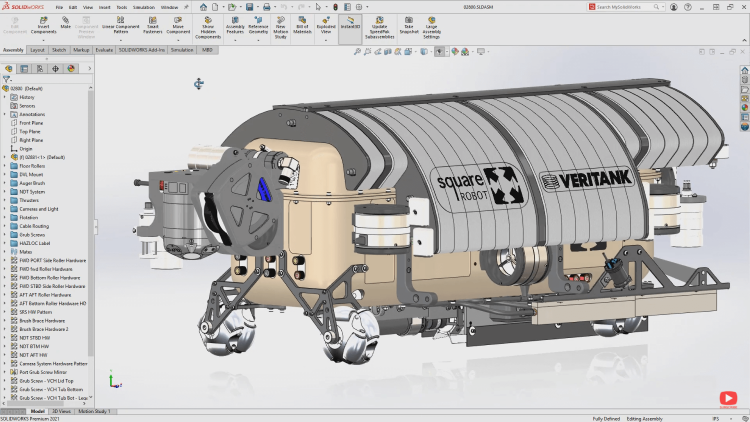
Solidworks has a wide range of tools for efficient industrial 3D modeling design purposes. The software was designed to help professionals innovate and streamline their product development process. It is ideal for professionals who need to create reliable 3D designs. It has tools for 3D printing, assemblies, CAM, cost estimates, manufacturing, and simulation.
Solidworks also allows you to reverse engineer a design to recreate or redesign a model. You can also use Solidworks’ design validation tools to verify that a print file can, in fact, be printed. The software does not use polygonal modeling and uses dimensional sketching instead. This, in turn, makes resizing objects easy.
Before printing, you can test the performance and safety of designed objects in Solidworks simulation modes to see if it is viable. Solidworks will automatically check the model for weaknesses and potential printing problems. Plus, this software has topology optimization which saves filament during printing. It’s great for commercial and academic settings because of this feature alone.
The 3D modeling program is full of tools that allow you to create, publish, simulate, and otherwise manage your designs. Additionally, it has an easy learning curve.
While Solidworks can get very pricey, it does have a free trial for you to use prior to diving into purchasing or licensing the software.
Pros:
- Reverse engineering and validation tools
- Dimensional sketching for easy resizing
- Simplified 3D printing workflow
- Ideal for industrial use
- Shallow learning curve
Cons:
- Will lag on older computers
- Too costly for amateur use
- Error messages can be difficult to interpret
Pricing:
- $1295/year
- $3995 for a lifetime license
8. CATIA – Best 3D Design Software for Corporations
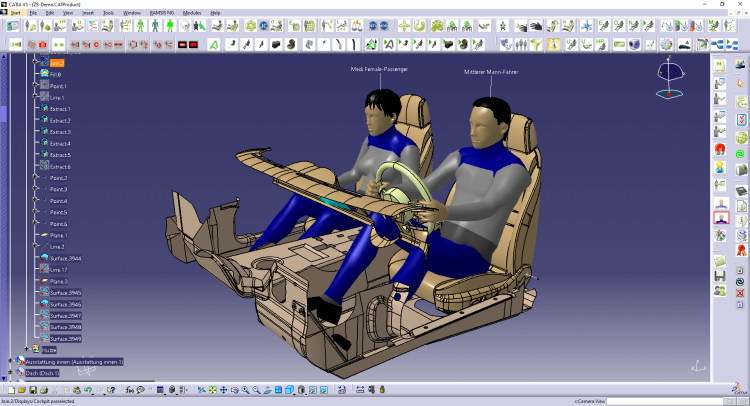
CATIA was originally designed for aviation purposes, however, it has since expanded into both the aerospace and automotive industries. It is capable of handling CAD, CAM, and CAE. It is used by large corporations, including Boeing.
This 3D design tool allows you to take a 3D scan and edit it into a printable model. Plus, it enables you to provide textures for color prints. Another thing CATIA allows is the ability to choose between plastic, resin, and metal filaments.
Pros:
- Ability to be used in large organizations
- Ability to track all changes done to a 3D model
- Manages all data during product development
- Collaboration with other users for design sharing and modeling
- Texturing for color prints
Cons:
- Very expensive
- Not fit for beginners
Pricing:
- A quote for the software subscription is available upon request
9. OpenSCAD – Best 2D Drawing Extrusion Tools
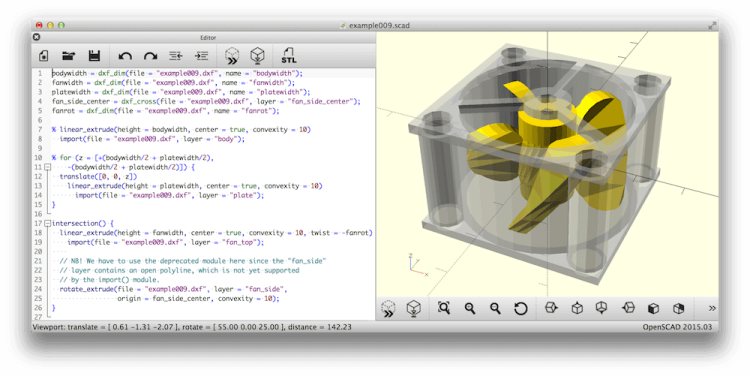
This open-source software platform can create both efficient and reliable 3D models, which is great for professionals working on complex or elaborate projects. The software is also highly intuitive for anyone with a background in coding or programming.
The models are generated through typing scripts, setting the parameters of the object. Once everything is described in the script, you click the compile button and it generates the 3D design. This can be relatively off-putting for beginners or people who have no background in programming.
The fact that all objects are described as code means that they can be stored and reused in many different contexts. Also, adjusting the designs to suit different needs is easy.
When it comes to creating a 3D design out of a 2D drawing, OpenSCAD uses a part profile from drawings and the SFX file and is thus able to create the 3D model from the sketches.
Pros:
- Ideal for creating simple shapes
- A large community of 3D designers
- Available on Windows, Mac, and Linux
- Ideal for programmers
- Can extrapolate 3D objects from 2D drawings
Cons:
- Not user-friendly for beginners
- Not good for complex shapes
- Reliance on script language makes it inaccessible to some
Pricing:
- Free
10. Rhinoceros 3D – Best 3D Printing Software for Mathematical Prints
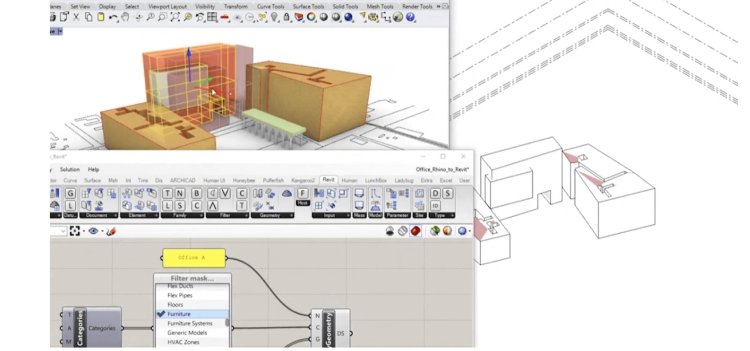
This 3D modeling software is highly versatile, allowing you to manipulate points, surfaces, curves, meshes, and solids in any way possible. There are also a plethora of design features for graphic designers.
Rhinoceros 3D has a great file management tool for working on larger projects, making this a great 3D printing software for complex or large models. The ability to annotate and add different dimensions in any view also aids in this process.
Rhinoceros uses NURBS geometry, which is a three-dimensional representation of mathematical curves. It is resource and memory-efficient, accurate, and universal. As such, Rhinoceros does not put polygons onto meshes, but curves. This is how it conserves resources.
While Rhinoceros does not render or animate, it pairs well with complementary programs like AutoCAD, Solidworks, and SketchUp. It can save to a wide variety of formats including IGES, OBJ, STEP, and STL. Similarly, it can import all of those formats.
Pros:
- History recording feature
- Point editing on curves, surfaces, and meshes
- Ability to import file types of DXF, IGES, OBJ, STEP, STL, and more
- Ability to add dimensions in any viewpoint
- Objects can be annotated
Cons:
- Steep learning curve
- Overwhelming amount of features
Pricing:
- Paid plans start at $495
11. SketchUp – Best 3D Modeling Software for Architectural Professionals
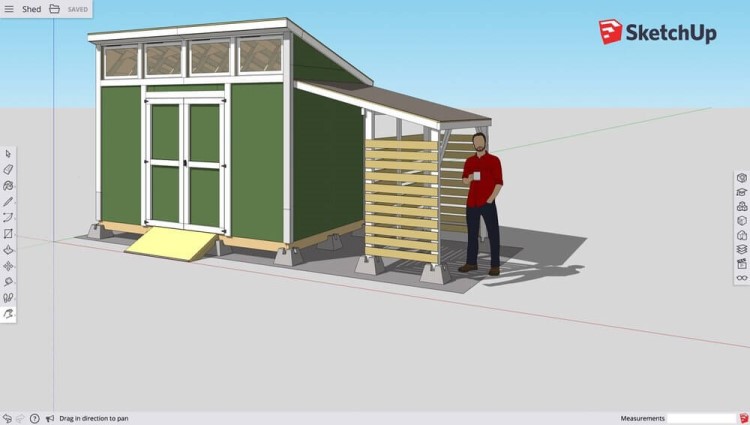
SketchUp was designed by Trimble for architectural design, and thus architects, builders, and engineers. It is perfect for creating quick 3D models for the purpose of showcasing them to clients. It is a great balance of simplicity and functionality.
It attracts design newcomers with a shallow learning curve and intuitive interface, but also has advanced tools for more experienced designers. The free version comes with a wide array of features to choose from, plus 10GB of cloud storage, the ability to view models on mobile, and access to SketchUp’s model repository.
The online format also makes SketchUp perfect for those who lack significant computing power. Plus, it can be accessed from any device that has an internet connection.
Interior and Exterior designs for architectural projects can be quick to make, or you can spend longer on them to make them more complex. The sandbox mode is oddly reminiscent of Sims software and can thus be familiar to simulation gamers.
SketchUp is fantastic as it is, but there are also extensions to make certain design features more realistic looking. Unfortunately, because SketchUp is browser-based, an active internet connection is required for use.
Pros:
- Easily document 3D designs in 2D
- Collaborative workspace
- Immersive VR experience for simulating designs prior to printing
- Beginners have easy options for 3D modeling and printing
- Easy-to-understand user interface
Cons:
- Limited capabilities for complex 3D models
- Requires internet connection
- Prints must be scaled down for printing on most 3D printers
Pricing:
- Free trial for 30 days
- Free with G Suite or Microsoft Education account
- SketchUp Shop: $119/year
- SketchUp Pro: $299/year
- SketchUp Shop Studio: $1999/year
- Students and Educators: $55/year
12. OnShape – Best Cloud-Based 3D Software for Modeling and Printing
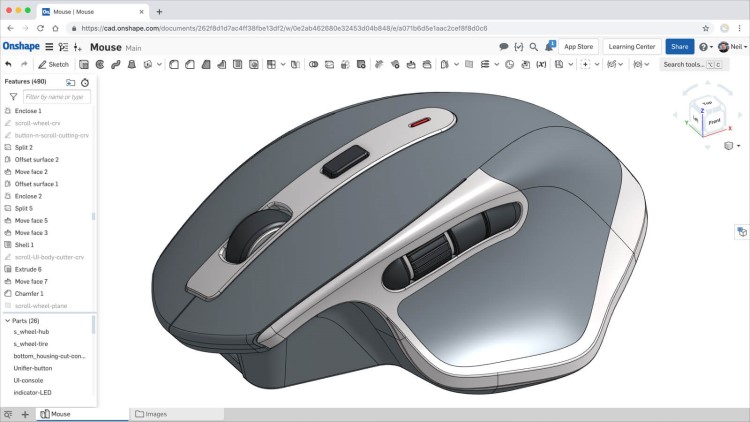
This 3D modeling program is easy-to-use compared to other options out there. Built entirely in the cloud, all designs are saved there, rather than taking up storage space on your device. The cloud capabilities also enable easy and efficient collaboration on many different projects at once.
Its collaboration mode features the ability for the same model to be opened by multiple users simultaneously with a real-time chat.
OnShape is designed to speed up both design and production times and otherwise make the workflow more efficient. It is a one-stop shop for creating, modifying, managing, and validating all 3D design projects.
Another benefit of OnShape is its compatibility with any device, be it a desktop computer, tablet, smartphone, or anything else. Files can be viewed and edited from any of these devices.
Pros:
- Robust collaboration features
- Compatible with desktops, tablets, and smartphones
- Perfect for teams
- Create detailed and immersive 3D models
- Offers a single master version of the CAD program data
Cons:
- Finding commands can be difficult
- Projects are kept in public repositories for a free version
- Requires internet connection
Pricing:
- Free version with basic functionalities
- Paid plans start at $125/per month
13. 3D Slash – Best Printing Software for Beginners
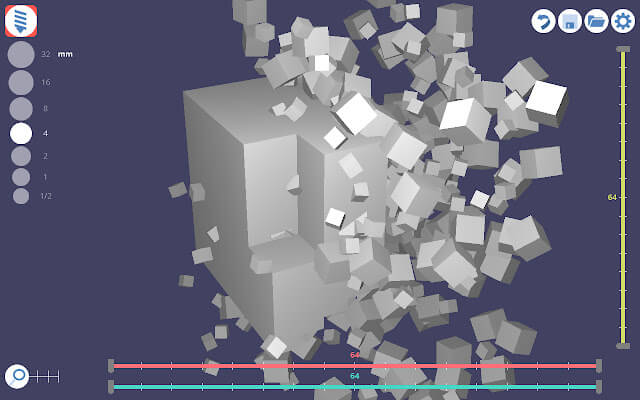
3D Slash is inexpensive and easy-to-use and is marketed to be one of the most fun ways to learn 3D design. Its straightforward approach to modeling makes 3D printing accessible to anyone, even people with limited technical knowledge.
The interface is intuitive with a block-cutting style for creating shapes. The tools are familiar to anyone who already has a background in 3D design but are also easy to learn for new users. Plus, 3D Slash has plenty of tutorials and on-screen instructions for the purposes of learning all the program can do.
You can also download and import files to cut them apart into something else. It can be run in standard or VR modes.
3D Slash is perfect for making 3D text and logos, even when converting a 2D logo file into a 3D file type. You can share the creations to most social media platforms easily. As an additional benefit, it works on Windows, Mac, Linux, and Raspberry Pi.
Pros:
- Easily allows rounded shapes
- Apply color with a syringe tool
- VR mode enables users to visualize models more comprehensively
- Capable of editing STL files
- Intuitive features designed for anyone to use
Cons:
- No advanced features
- Limited customization options
- The software can glitch and crash randomly
Pricing:
- Free plan
- Paid plans ranging from $2/month to $20/month
14. 3D Builder – Best Modeling Software for Simplifying Complicated Meshes
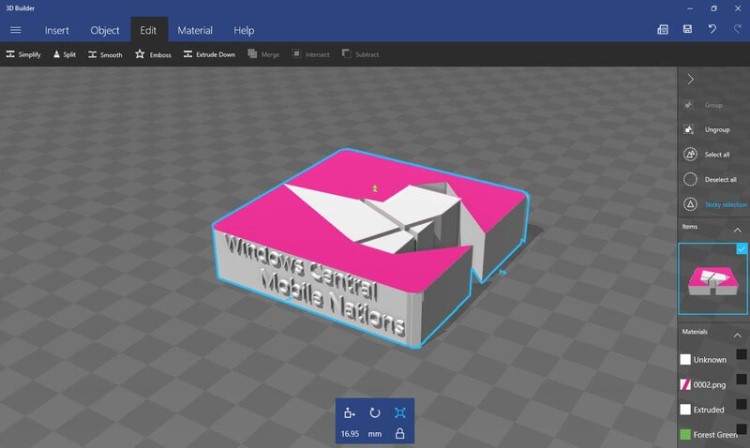
Microsoft’s 3D Builder is a quick way to get into 3D model visualization and 3D model editing. It can handle formats such as STL, OBJ, and 3MF. Its tools are easy to use and simplified for entry-level users.
It also has the ability to simplify meshes, reducing the polygons in busy designs, and thus making your system not work as hard to render them.
Other features that pair well with 3D Builder are the ability to use the Kinect V2 Sensor to scan and import 3D designs, and the 3D Printing SDK add-on.
Pros:
- Simple and easy-to-use
Cons:
- Only works on Windows and with other Microsoft programs
Pricing:
- Free
15. Figuro – Best Balance of Features for Moderate Design Use
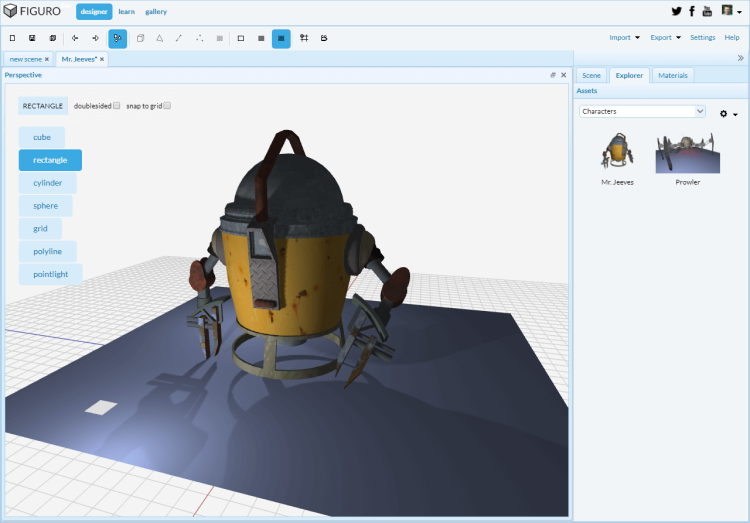
Figuro is a good middle-of-the-road software for someone wanting to advance their 3D modeling capabilities without going into highly comprehensive programs.
Figuro operates with polygonal modeling: generating the shapes, manipulating them, and stacking them together.
It has an easy-to-navigate user interface and is browser-based, so you can work anywhere with an internet connection. Figuro also has a gallery to view others’ creations to get inspiration. The app is user-friendly and can be used by beginners as well as more advanced users.
Pros:
- Video tutorials for beginners
- User friendly
Cons:
- Given the nature of polygonal modeling, 3D printing requires running an STL checker prior to printing
Price:
- Free
16. Blender – Best Free 3D Animation Software
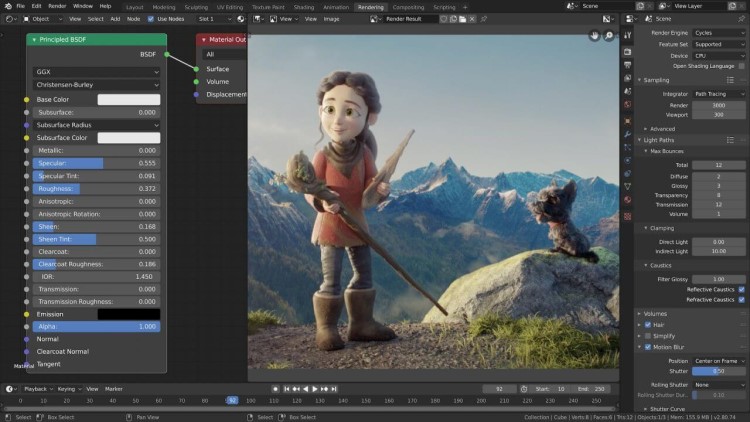
Blender is not really suited for beginners, as it has a steep learning curve. However, if you are already comfortable with 3D modeling concepts and wish to produce higher-quality 3D models, Blender is a good option to switch to.
Most of the learning curve for Blender comes from the program’s intense focus on keyboard shortcuts. Nevertheless, the community has a bunch of tutorials, and people often write extensions for it to make it more capable and accessible. The community is also full of shared creations to get you started.
Blender features a real-time renderer called Eevee, and a 2D drawing and animation system called Grease Pencil. All of this put together makes Blender a very powerful 3D printing software. It is a combination of many areas of 3D creation: animation, compositing, game creation, modeling, motion tracking, rendering, rigging, simulation, video editing, and many more areas.
Rather than focus on parametric modeling, Blender allows for free modeling and sculpting. This is likely because it actually began as 3D modeling software for animation and then transitioned into software for printing as well. It is a great alternative for people looking for animation software who do not want to pay anything.
Pros:
- Feature-rich with seemingly unlimited functions
- Tools for sculpting, animation, simulation, rendering, motion tracking, and video editing
- Photorealistic rendering option
- Fast render options for previewing models
- Ability to track changes in 3D models
Cons:
- A steep learning curve is a turn-off for beginners
- Troubleshooting is complicated
- The interface can get cluttered with larger projects
Pricing:
- Free
17. BRL-CAD – Best 3D Design Tools for Reliable 3D Modeling
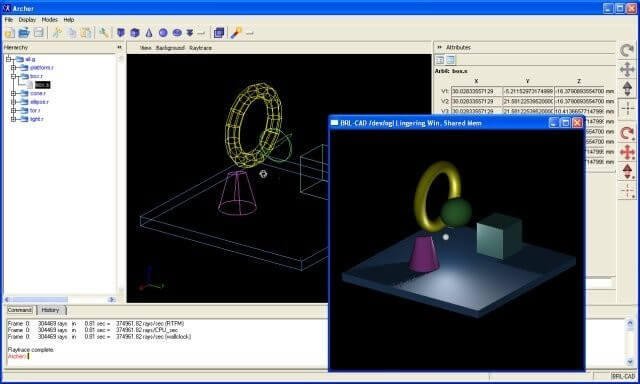
This 3D modeling software was developed by the US Army for the purposes of ballistic and electromagnetic analyses. Thus, it includes ray tracing and geometric analysis tools. However, it is also open source and has interactive geometry editing.
BRL-CAD has a large library of shapes that you can use in your own designs by manipulating, combining, and otherwise editing them however you, please.
Additionally, the software runs at really high speeds given its wide range of features.
The fact that it is still used by the United States Military shows that it is dependable and also advanced. That said, it is not meant for beginners.
Pros:
- Solid Modeling
- Ray tracing capabilities
- Precision when combining and arranging different shapes
- More than 400 design tools
- Intuitive design
Cons:
- Inaccessible to newcomers to 3D design
Pricing:
- Free
- It used to cost money but has since been converted to Open Source
18. Wings 3D – Best Free 3D Modeling Software
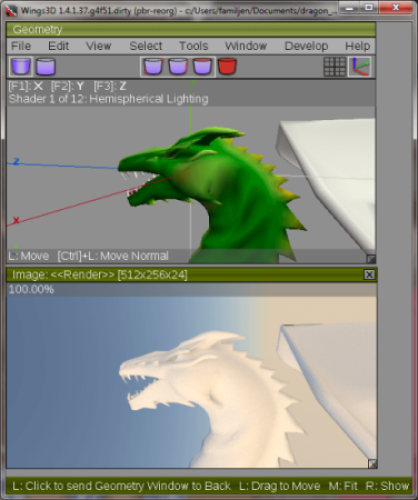
For freeware, Wings3D has a wide array of mesh and selection tools. The mirror tool is perfect for symmetrical modeling, for example. Additionally, the software features customizable hotkeys for streamlining the 3D printing workflow.
Wings3D has a steady learning curve but is also accessible to beginners. The user interface is easy-to-use but also features tools like bend, circularize, inset, intersect, move, the plane cut, rotate, scale, shear, sweep, and weld.
The software gives you good previews of your design that you can then manipulate and add texture to. Any image can be exported for painting purposes. Wings 3D has an almost endless array of tools that you can avail yourself of.
Pros:
- Supports English, French, Italian, German, Japanese, and more languages
- Images can be exported for painting
- Customizable interface
- Wide selection of tools
- Ability to customize shortcut keys
Cons:
- Low-poly style of 3D modeling
- All windows exist in the root window and cannot be broken out for side-by-side viewing
Pricing:
- Free
19. MoI 3D – Best 3D Printing Software for iPad
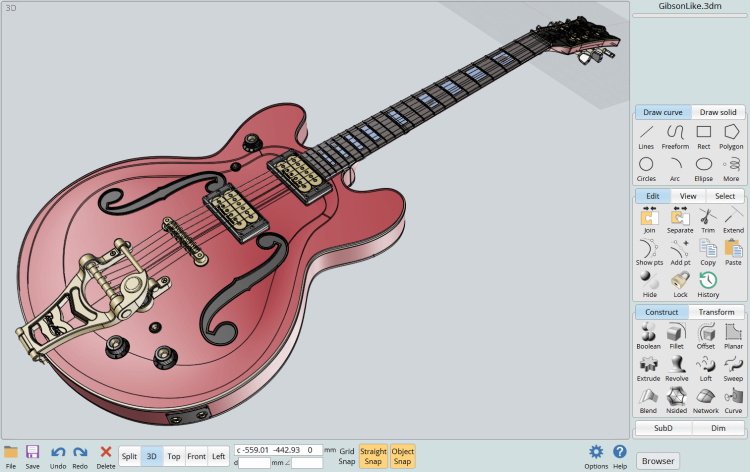
MoI3D is pen-tablet friendly, making it ideal for iPads and other tablets. It has a streamlined user interface but also a broad range of CAD tools. Within that range is a combination of useful functions that exclude often pointless functions that would otherwise clutter the interface.
Pros:
- Full of features for the polygonal modeling
- Price is cheaper than similar competitors
Cons:
- Certain features lacking in a paid program
Price:
- $295
20. Rhino3D – Best Software for 3D Printing Jewelry
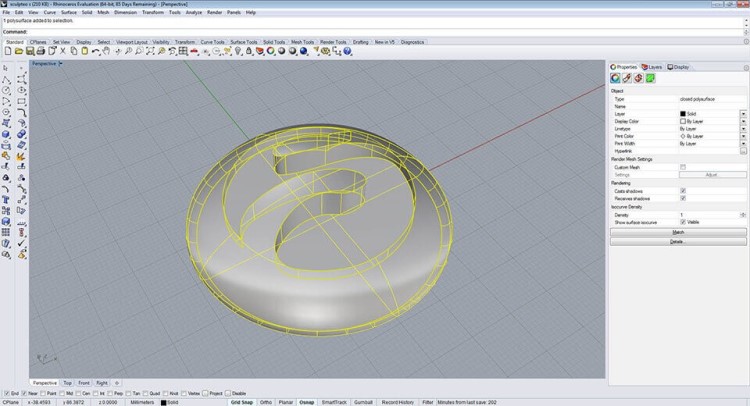
This 3D design software is powerful and versatile. It has features for 3D capture, 3D printing, analysis, CAM, modeling, and rendering. You can manipulate curves, meshes, solids, and surfaces to create complex 3D models.
Rhino3D can be difficult to learn. Its detailed software can be a lot to get the hang of. Nevertheless, it is designed for intricate models and editing tiny elements.
Rhino’s free-form modeling features make designing objects of unusual shapes easy. Because of this, Rhino3D is great for printing jewelry and miniatures with incredible detail. On the flip side, Rhino3D is also great for designing life-sized models of rooms and buildings.
Pros:
- Powerful, detailed software
- Feature-rich software
- Ability to manipulate anything
- Create complex and versatile 3D models
- Buy once and have the license for life
Cons:
- Not always the best at capturing user intent
- Difficult to learn
Pricing:
- $995 for a lifetime license
- $195 for students, lifetime license
21. Modo – Best 3D Modeling and Texturing Software
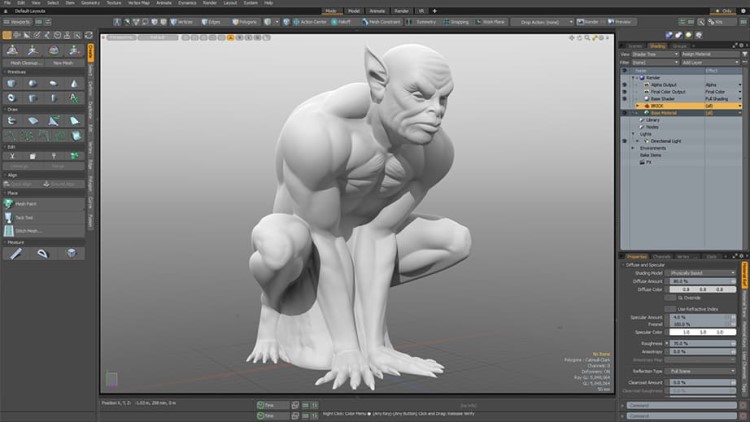
Modo allows you to create everything from freeform organic models to precision meshes. Its surface modeling tools have a lot of flexibility. Despite being full of a large set of features, Modo still runs smoothly, even if you are also running partner software and extensions.
Modo is not cheap, but it is a good procedural modeler and is perfect for artists, animators, and anyone else who needs to do texturing, modeling, and rendering.
However, if you intend on using the software for a while, the lifetime license is definitely something worth looking into.
Pros:
- A vast range of features for designers
Cons:
- A yearly subscription is costly
Pricing:
- $599/year
- $1799 for a one-time purchase
22. Cinema 4D – Best Sculpting Software for 3D Printing
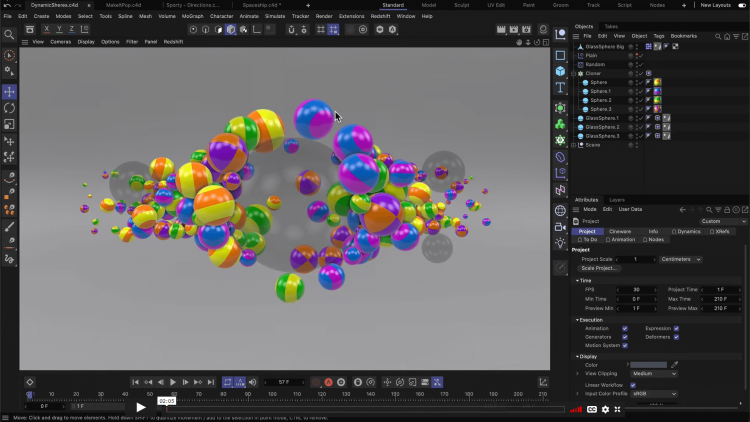
Cinema 4D’s price definitely puts it more in the range for professionals. However, it also has a flat learning curve and has user-friendly options that enable amateurs to use the program with ease.
Cinema 4D has great scaling, shading, and sculpting tools. It is ideal for editing pre-existing models and files. It also has a really procedural workflow for the purposes of streamlining the printing process.
Pros:
- Powerful software for complex designs
- Approachable to beginners
- Updated to be optimized for various operating systems
Cons:
- Pricey
Pricing:
- $720/year
- $3945 for a lifetime license
23. Autodesk Maya – 3D Printer Modeling Software with Extra Features
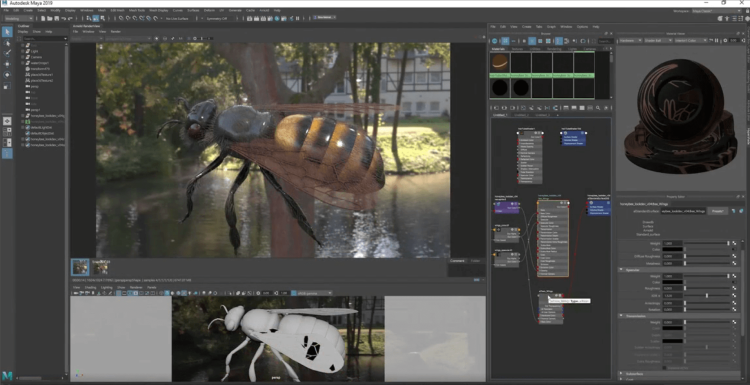
Maya is great at smoothing out surfaces and shapes. It was originally designed as a 3D animation software but is also great for 3D printing. Maya’s rendering engine is fast and perfect for models that are detailed and intricate.
Maya allows for the intuitive manipulation of objects and its rendering capabilities are unparalleled. The toolsets are streamlined and user-friendly. Maya is capable of a huge variety of modeling tasks, as the tools range from animating and simulating to printing.
For example, Maya allows you to define wall thickness and explicitly define the final print size. The software can handle complex objects easily, scaling them to whatever size you need for the final model.
The software also includes prebuilt parameters for liquid simulation, motion libraries, natural-looking hair, rainstorms, and much, much more. The ability to create realistic effects is unparalleled.
Pros:
- Diverse software with plentiful capabilities
- Intuitive user interface
- Easy-to-learn
- Adjust the size of models easily
- Add realistic effects to models effortlessly
Cons:
- Pricey
Pricing:
- $1545/year
24. 3DS Max – Best Animation Modeling Software
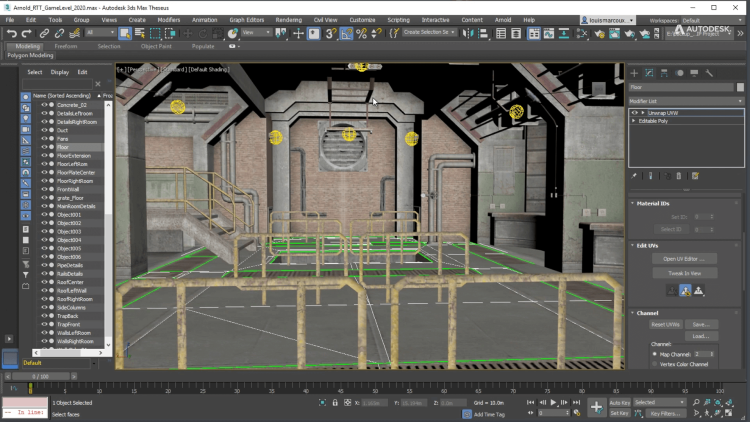
This 3D design software offers parametric mesh modeling, polygon modeling, and rich shading tools. 3DS Max is built for animation and a lot of video game developers and architectural visualization studios like using it.
The 3D modeling is unrivaled and 3DS Max also has amazing error detection. Prints are watertight, which makes them perfect for the engineering, manufacturing, medical, and movie industries.
Despite all this, 3DS Max is easy-to-learn.
Pros:
- Ease of importing and exporting
- Easily check if a model is STL compliant
- The interface is adjustable for design needs
- Robust simulation modes
Cons:
- Price point really locks it into industry sectors
Pricing:
- $1545 to $1620/year
25. Autodesk Netfabb – Best 3D Design Software for Printing
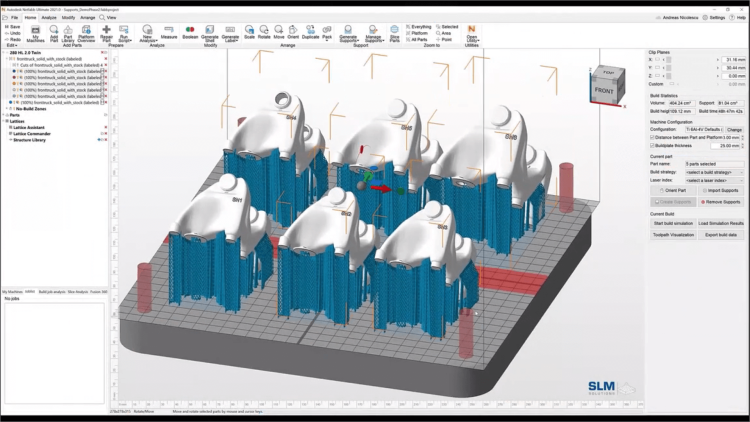
This 3D printing software is designed for industrial 3D printing due to its additive manufacturing capabilities. It is not geared toward hobbyists, though the software does have a lot of customization options. It is mostly geared towards industrial sectors like automotive, aerospace, and medical.
NetFabb optimizes being able to print multiple parts of a whole simultaneously and allows you to organize them into your printer efficiently. This can be a lifesaver when it comes to saving on filament costs as well as time.
As far as the software goes, it is great for creating internal lattice structures for cost-saving printing techniques but also still providing strong structures.
Pros:
- Perfect for printing multiple parts simultaneously
- Lattice structures create lightweight but strong parts
- Highly advanced 3D printing software for additive manufacturing
Pricing:
- $30/month for Standard
- $550/month for Premium
26. 3DPrinterOS – Best 3D Printing Software for Schools
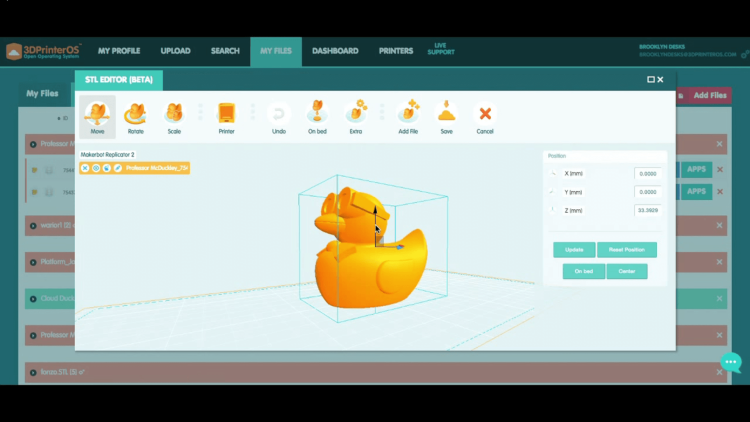
3DPrinterOS is more of an operating system that functions out of the cloud than a singular-use printing program. This makes it great for school and business printing because multiple slicers and related printing software can be handled simultaneously through 3DPrinterOS.
This software allows you to send hundreds of files to multiple 3D printers, all at the same time. It provides data reports of what has been sent to which printer and how each print is doing. Plus, you can remotely control individual files regardless of where they were sent.
Pros:
- Native API makes designs secure
- Objects are clearly displayed
- Great functionality
- Supports nearly all 3D printers on the market
- Can upload and slice files from anywhere
Cons:
- Software lags sometimes
- Steep learning curve
- High costs
Pricing:
- Available upon request from the developer
27. Vectary – Best Open Source 3D Modeling Software for 3D Printing
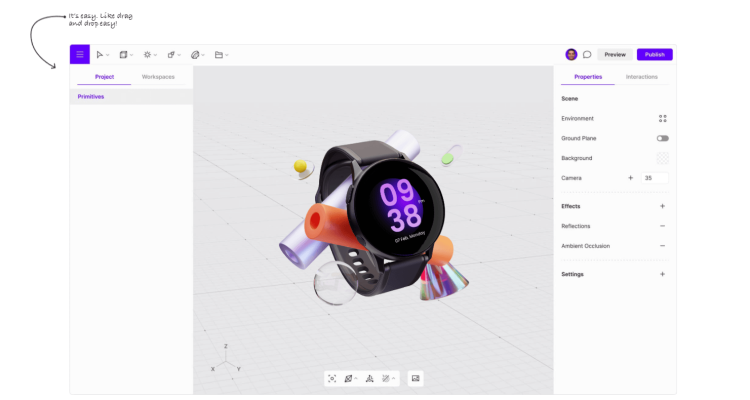
Vectary is browser-based and can be accessed anywhere with no installation. It is a great tool for beginners because designs can be started with just a drag and a drop. Going from there, you can make photorealistic renderings and add advanced textures.
This 3D modeling software has plenty of smart shortcuts that make your 3D printing workflow more efficient.
Pros:
- Advanced texturing
- Easy collaboration
- Smart shortcuts for streamlined workflow
- High-quality templates to get you started
- Add comments to models
Cons:
- Tools can be hard to learn with little documentation
- Hard to smooth out curved surfaces
- Glitchy in Safari browser
Pricing:
- Free plan
- Premium plan: $12/month per person
- Enterprise: inquire
28. ZBrush – Best 3D Software for Sculpting
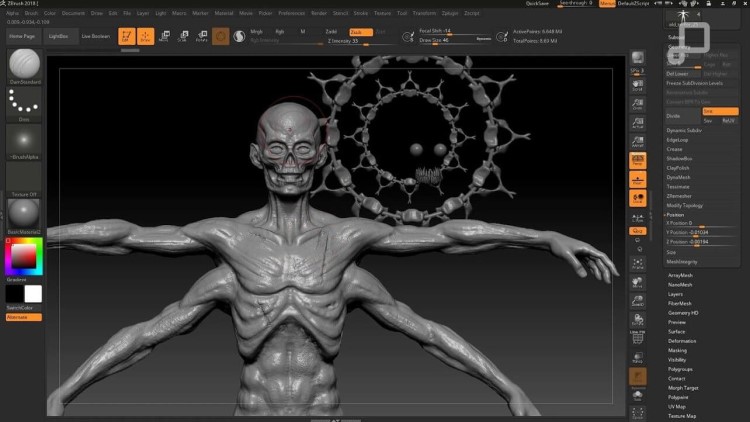
ZBrush is aimed at professional sculpting and modeling and its tools and modules focus heavily on sculpture rather than slicing. ZBrush is great for artists and designers. ZBrush tries to make it so users forget that they are using a digital program rather than simply sculpting with clay.
Because it is aimed at professionals, ZBrush has a pricing model that reflects that. ZBrush Core offers many of features and brushes, but ZBrush premium has more modules and options. You can purchase ZBrush as a perpetual license if you intend on using it exclusively or for a long time, but it is pricey.
Pros:
- A proprietary algorithm adds or removes triangles to the mesh dynamically
- Colors and textures can be applied easily and precisely
- The history recovery function allows easy management of previous versions
- Easily clone parts of the model with the copy brush
Cons:
- Expensive software
Pricing:
- $9.95/month for the Core version
- $39.99/month for the Full version
- $895 single perpetual license fee
Best 3D Printing Software according to Reddit:
Fusion and Solidworks are popular choices for 3D printing. SolidWorks for Makers restricts working in the cloud, so getting a new license for around $100 per year is an option, and they don’t verify student status.
- 19 Best Graphic Design Software and Tools in 2024
- Top 6 Account-Based Direct Mail Software for 2024
- 45 Impressive HP Stats and Facts [Market Share & Usage] 2024
What software do 3D printers use?
Any of the software mentioned above that can save files to STL, OBJ, GCODE, VRML, 3MF, X3G, AMF, FBX, or PLY can be used in conjunction with a 3D printer for the purposes of printing models. It comes down to personal preference and design needs.
What is the most popular 3D modeling software?
Autodesk Maya is the most popular 3D modeling software for those who can afford it. Its incredible power and comprehensive toolset easily put it at the top of the list. For those looking for a free option, consider Blender, which has a plethora of tutorials and tools in its 3D modeling toolset.
Do you need a computer for a 3D printer?
Some 3D printing software is compatible with phones and tablets, so a computer is not necessary. However, any program that requires a download will require a computer to run. Some heavier software also will require a more robust computer.
Does Adobe have 3D printing software?
Adobe Photoshop can create files suitable for 3D printing. For those looking to take it to the next step into 3D modeling and printing with Adobe, check out Adobe Substance 3D, which has a deal going on right now where you only pay $40/month for the first year.
What material is not used in 3D printing?
3D printing usually uses plastic filament, though you can also print with metal and resin. Materials such as cloth, paper, rocks, and wood cannot be used for 3D printing because they cannot be melted down and extruded through a 3D print nozzle. A caveat to cloth is that nylon can be printed due to its synthetic nature.
What are 3D file types?
The common 3D file types you will come across as you embark on a journey of 3D printing include STL, OBJ, FBX, DAE, 3DS, IGES, STEP, VRML, X3D, AMF, and 3MF. The file type varies based on the software used and the type of model being created.
What is the most popular type of 3D printing?
Fused deposition modeling (FDM) or fused filament fabrication (FFF) is the most common and popular type of 3D printing at the consumer level. It is the process of extruding the material through the nozzle. It allows for multiple types of material usage and offers the best surface finish.
What are the 4 C’s in 3D printing?
The four C’s of 3D printing are:
- Critical Thinking
- Communication
- Collaboration
- Creativity
The process of 3D modeling and printing draws on all of these concepts at all stages of the 3D print workflow. They all also play into comprehensive digital literacy and STEM fields.
How fast is the fastest 3D printer?
Determining the fastest 3D printer requires comparing desktop, consumer, and industrial use. Also, some printers measure in pounds produced in a given time versus millimeters printed in a given time.
Some printers can get up to speeds of 300 mm/s and others can print 80 lbs/hr. The choice just depends on what you are looking for.
Conclusion
This list is by no means comprehensive but has a good overview of the types of modeling, sculpting, slicing, and printing software that is available to use for 3D printing. Hopefully, it helps you get started on your 3D printing adventures or helps you take the next step in your hobby or career.
